In many marketing campaigns, certain links in your email can be very indicative of prospect interest. You may want to use the fact that the recipient clicked on that specific link to trigger a very clear series of actions. Perhaps the click should associate that contact with a campaign, perhaps it should add them to a program, or perhaps you want to notify your sales team directly as soon as the link is clicked.
Whereas all of this can be done by using content tagging and web profiling, there is a much easier way. This is something that Heather Foeh, who writes on
Marketing Insights talks about quite a bit, and it's a great technique so I wanted to share it here.
Using a technique called “hidden form submits” you can directly tie the clicking of a link to the submit of a form within Eloqua. From there, all of the processing steps within the world of forms are available to you. The key to this technique is the fact that when a form is submitted, the way in which the data is sent to the web server is the same as the way in which a URL is formed, with each of the fields in the form in the URL’s query string in a Field1=Value1&Field2=Value2 format. If you structure your links in your email in this way, each link will act identically to a form submit.
To do this, first create your form in Eloqua as you normally would. Usually, you would only create a form with one or two fields in it for this technique, definitely email address, and perhaps one more (if you have a “click for Yes” and “click for No” pair of links, for example, you might have one form field for “Answer” also).

Once you have done this, and you have created the form processing steps to do what you want with the incoming data, the next step is to structure the link for insertion into your email. From the form, go to the Integration Details page (button is on main Form details page). You will see a number of fields on this page that give you what you need to structure the link.

The first is the page to submit to. This will be similar to
http://now.eloqua.com/e/f2.aspx and is the first part of the link. From there, you will take the other system form fields that are presented there and structure them as name=value pairs. The first name=value pair starts with a “?” and the rest are separated by “&”. This will create a link that looks like
http://now.eloqua.com/e/f2.aspx?elqSiteID=33&elqFormName=HiddenFormSample with the site ID and form name representing your form.
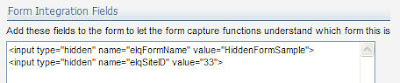
The next step is to insert a field that represents the recipient’s email address. This is, of course, different for each recipient, so you will need to insert an email field that will dynamically populate their email address. If you have worked with the HTML behind email fields, you will be familiar with this. The email address insertion code is as follows (assuming you use the standard email address field, otherwise adjust that field name to yours): “&C_EmailAddress=<span class="eloquaemail">EmailAddress</span>”. If you have custom fields, for example our Yes and No options, you will likely want to hard code their values into the link. The “yes” link would have “&Answer=Yes” while the “no” link would have “&Answer=No”.
With this in place, your final link will look something like:
http://now.eloqua.com/e/f2.aspx?elqSiteID=33&elqFormName=HiddenFormSample&C_EmailAddress=<span class="eloquaemail">EmailAddress</span>&Answer=YesYou can then use the Insert Hyperlink function in the email editor to insert your carefully constructed link into your email, and you will have a link that acts as a hidden form submit.
This technique is a very powerful one as it allows you to get creative with what happens when your email recipients click on links within Eloqua emails. All of the capabilities of the form engine are available to you.
I look forward to your comments on how this technique has worked for you.


