

Today's post on Artisan is another guest post from Ben McPhee, on our Product Management team. In his last guest post on checkbox confirmations on web forms, Ben brought some of his insights from his work with sports marketing organizations to Eloqua Artisan.
This time, Ben looks at how to flag high value content - such as a season schedule - and then use the viewing of that content, at any point in time, from any source, as a feeder to a very targeted nurture program. This technique is a very useful one, and can be used in any situation were high value content (a webinar, a product demo, etc) should be used as a trigger for a nurture program.
=================================
Do you have high value content that when downloaded or accessed by a web visitor, you know means that they're more likely to purchase or at least be receptive to future offers? Do you want to offer that download opportunity through one or more emails or web links, and then capture those visitors that downloaded the content so that you can add them to an automated nurture & upsell campaign? Well, in several easy steps you can do that using:
- Content Assets uploaded to Eloqua
- Query Strings to track links wherever they are used
- A Saved Report to identify who clicked on those links
- A Marketing Automation Program with Program Feeder to grab those people
In this example, let's say you want to kick off a campaign that allows your fans to easily download your team's schedule from an email, which would trigger a number of benefits for them (perhaps being added to a "Tell Me About Special Offers" distribution list) and a number of benefits for you (knowing who is interested in timing of games and events for better segmentation for upsell).
First, go to the Content Asset area (Setup -> Content Assets -> Content -> Upload Web Content) and upload your schedule (or whatever high value content you have in mind). This uploads the content and allows you to track the links to it.

Once you have uploaded the schedule, you will be provided with 3 links to the doc - one of them is called "Email Redirect Link" - copy that link and paste it somewhere for the time being, as you will eventually be inserting that link into your email.
Next, go to the 'Web Profiling' area and create a new Query String Parameter:

You can think of this query string parameter as a bucket, for identification purposes, for all the content you will ever offer to your fans for download. So we recommend you name this in a generic manner - like, "Content Item". That way when you are deciding upon WHICH content item you would like to use / report upon for different campaigns, you will be thinking in terms of, "Content Item = Event Schedule" or "Content Item = Player Profile Sheet". Give it a name, and don't worry about the rest of the settings.
The advantage of doing it this way - with Query Strings - is that you can use the content, with the Query String in the link in any email or any link on your website, and the rest of the process will automatically pick it up. Regardless of how you promote your team schedule or other high value content, if the link contains the Query String, the visitors who click on the link will be added to the nurturing program.
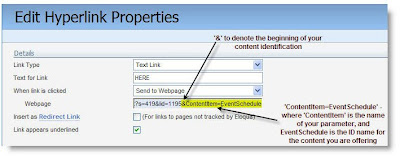
Now we'll move on to your email - design the email containing the free download offer and insert the hyperlink - when you paste in the link to your schedule (the link we told you to hold on to a few steps back), you will be editing the end of the URL to add the query string parameter you just created AND the name of the content, in this case "Event Schedule", to record the fact that anyone who has clicked on this link has done so to request your Event Schedule (you might need to click on this image to see it clearly):
The content element of your campaign is done! Now when people click on this link, they'll download your team's schedule! The next part is setting up the reporting and the automation to capture those people and add them to a marketing automation program.
Now we'll move on to your email - design the email containing the free download offer and insert the hyperlink - when you paste in the link to your schedule (the link we told you to hold on to a few steps back), you will be editing the end of the URL to add the query string parameter you just created AND the name of the content, in this case "Event Schedule", to record the fact that anyone who has clicked on this link has done so to request your Event Schedule (you might need to click on this image to see it clearly):

The content element of your campaign is done! Now when people click on this link, they'll download your team's schedule! The next part is setting up the reporting and the automation to capture those people and add them to a marketing automation program.
Go to the Report Console and search for a report called "Visitors by Query String Value". Then select the query string parameter you created earlier and enter in the ID/name you gave your content (in this case "EventSchedule") - run the report:


You can see that this return a list of people on your website who viewed your schedule (ie, clicked on a link containing the Query String you specified). Save this report and give it a more specific name - like "Schedule Downloaders" - and make sure you are using a relative time range for the report so that it is continuously filtering in your newest downloaders:

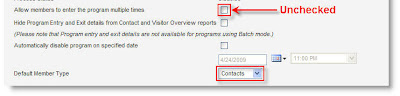
Now, create a marketing automation program that is going to manage the people that have downloaded your schedule - we won't get into the details of the actual program, but let's just start by creating it with the first step to get you going. For the program details, don't allow members to enter the program more than once, and set the default member type to contacts so that we can market to them.
Add a first step to your program to act as the entry point for your schedule downloaders. As an action for this step, we recommend having them added to a Contact Group so that you have more flexibility in how you manage and report on the fans that have downloaded the content (e.g., when put in a contact group it becomes easier to add them to a future email campaign distribution list):

Add a first step to your program to act as the entry point for your schedule downloaders. As an action for this step, we recommend having them added to a Contact Group so that you have more flexibility in how you manage and report on the fans that have downloaded the content (e.g., when put in a contact group it becomes easier to add them to a future email campaign distribution list):

Then, once that first step is saved, go to the "Members" menu and add a Feeder to the program - this is the item that actually defines how fans will be added to this automated progam - so to tie everything together, you'll be telling to system to add to the program all the fans that show up in that report you saved a few steps back - worded differently, anyone who downloaded your schedule will be added to this program:

Save this feeder and YOU'RE DONE!!
Now everyone that downloads your schedule from the email you send out will be automatically added to a program through which you can:
- Send them follow-up emails with further promotional offers
- Add them to other lead nurturing campaigns
- Notify your sales team to contact the fans
- Update their profiles to indicate their activity or change their lead score


